
Put the answer on the page where the question starts
The Support Hero widget lives inside your website or web app. When someone gets stuck, they open it and see the articles you chose for that page, read the answer without leaving, and reach your team only if they still need to.
No credit card required. Prefer a guided tour? Request a demo.
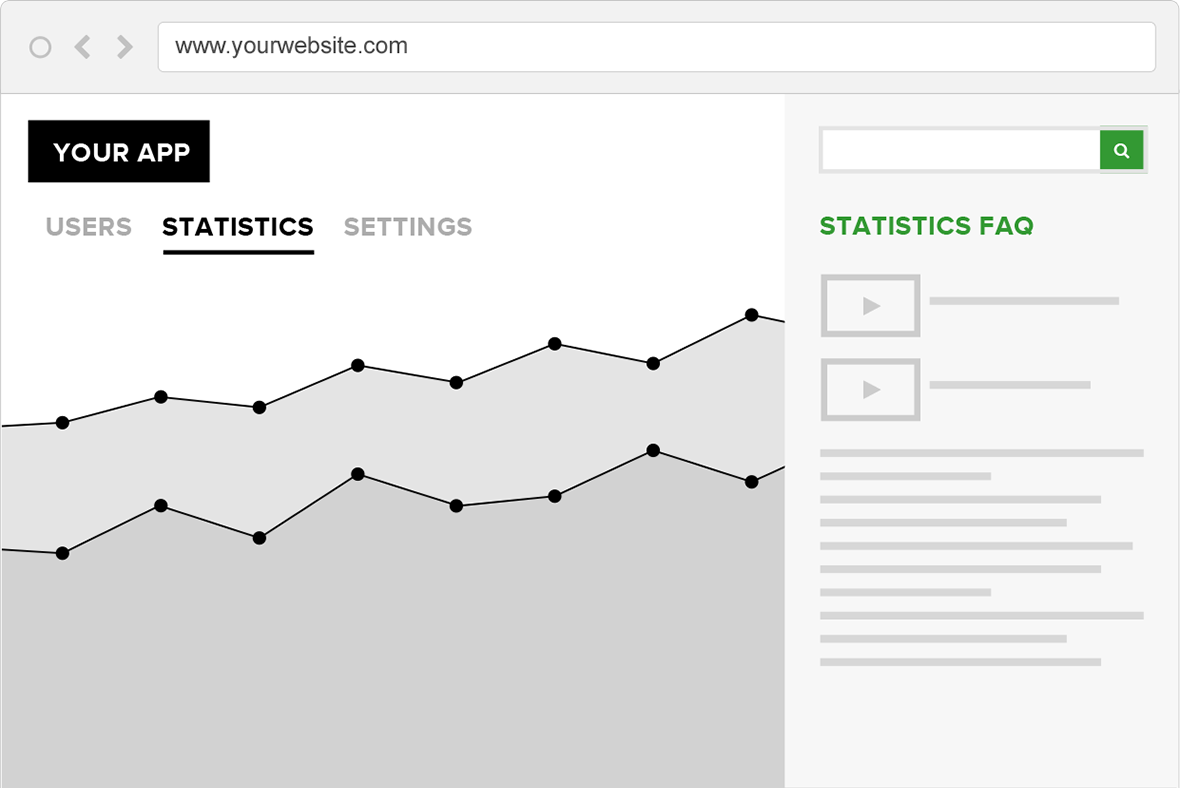
From “how do I…?” to an answer, in five steps
What a customer does, and what your team gets back, each time someone opens help inside your product.
Diagram: illustrative steps, not product screens
They ask for help where they are
A help button, or a link in your own interface, opens the widget as a panel over the page they were using.
They see help for that page
The articles you assigned to that page come first, so the first thing they read is relevant.
They read the answer in place
Articles open inside the widget, and search covers the rest of your knowledge base.
Still stuck? They contact you
The smart contact form walks them through questions and search first, then collects the details your team needs.
You see what happened
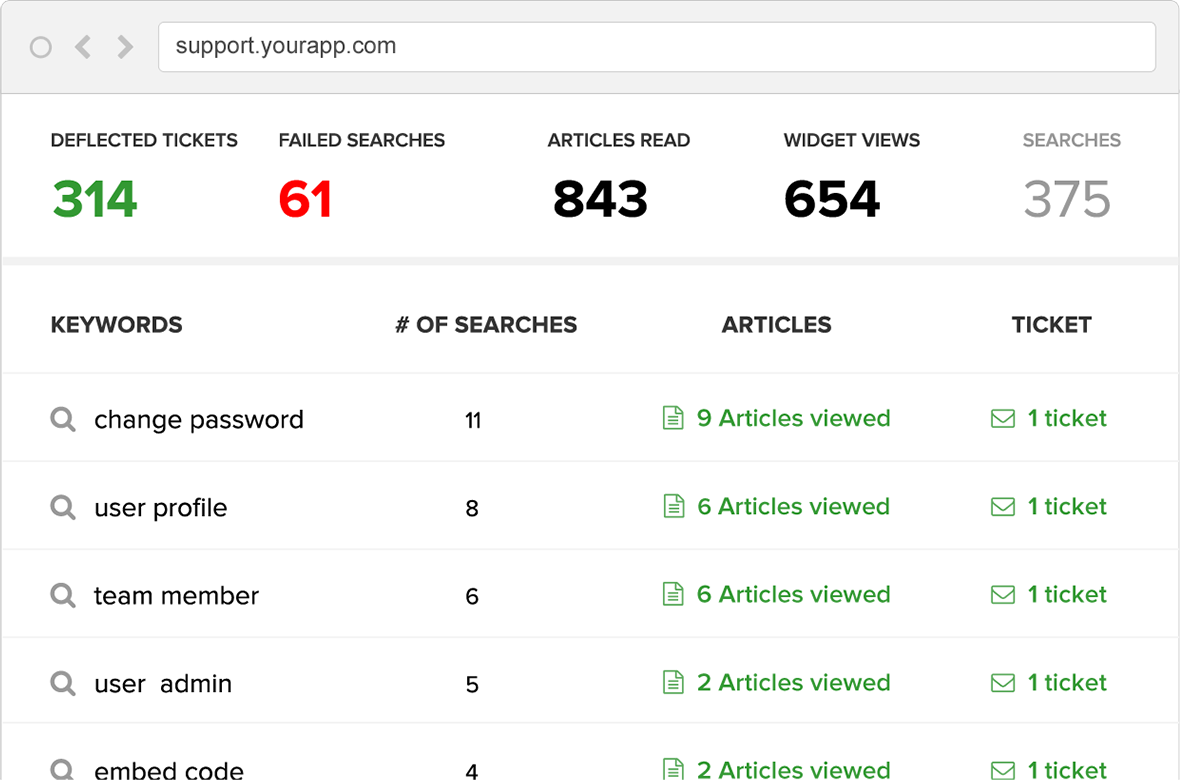
Statistics show widget openings, searches, failed searches, articles read and deflected tickets.
Match help to the page
Assign relevant articles to pages in your product so customers can find help in context. Anyone who opens the widget on that page sees those articles first.
- Open the widget from your own button or link, straight to an article, a category or a search
- Hide the widget on pages where it shouldn’t appear
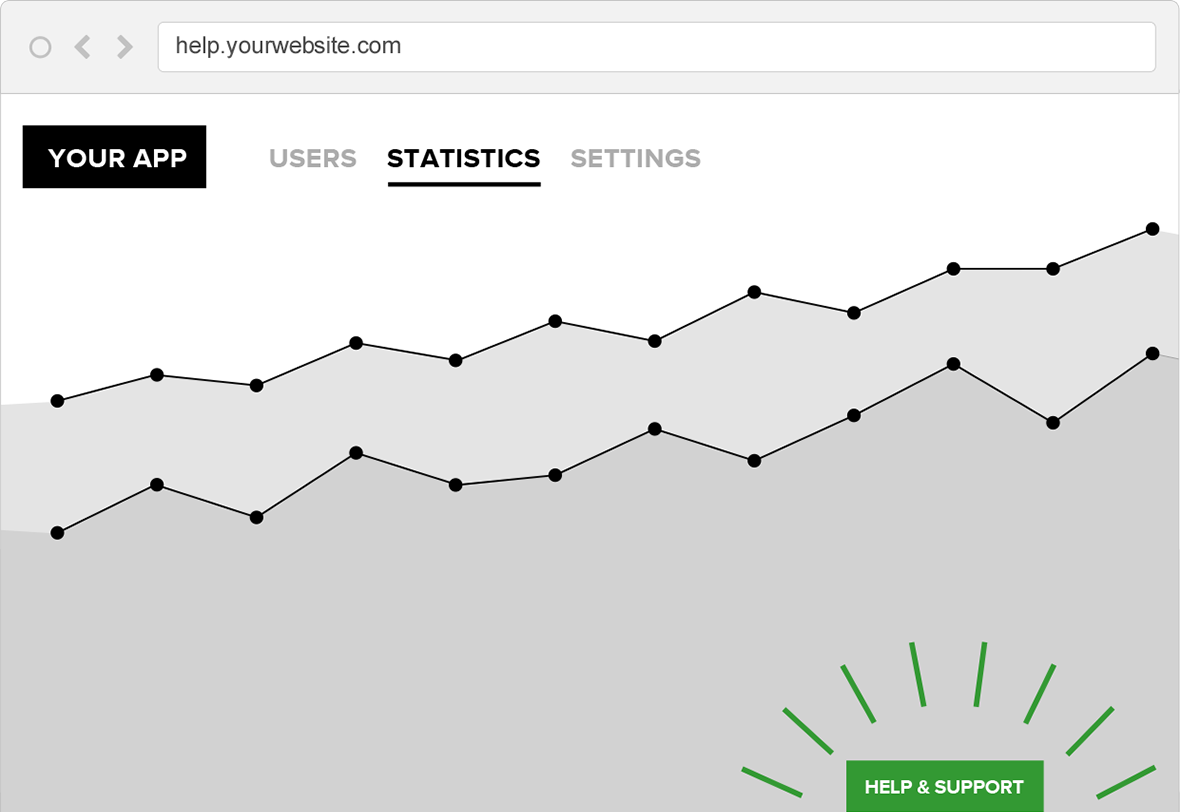
Read the answer without leaving
The widget shows the same articles as your help center, so there is one place to write and update. People search, open an article and stay where they were in your product.
- Full-text search in the widget and the help center
- Hide parts of an article when it’s shown inside the widget
- Images, video and PDFs in articles
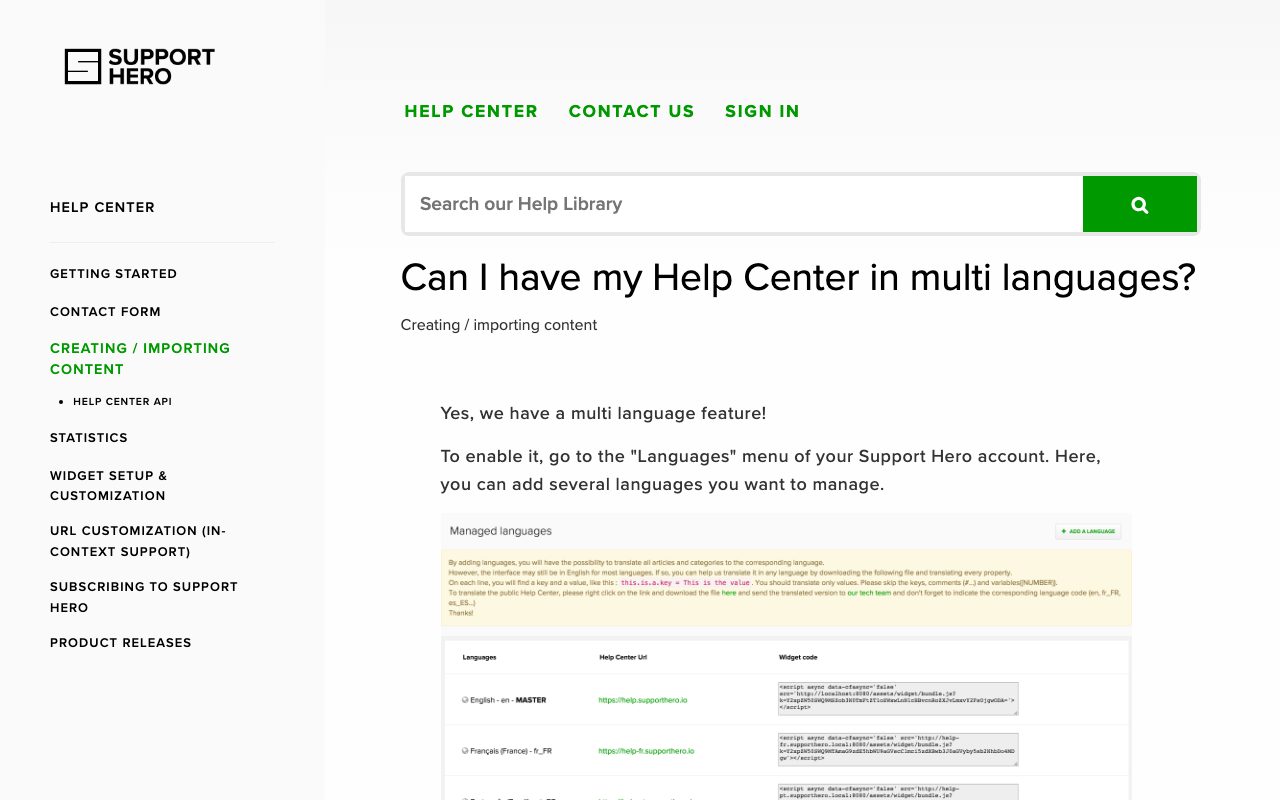
When they still need a person
The smart contact form walks people through questions, search and feedback before they send a request, so the people who do write to you arrive with the details your team needs.
- Send details about the signed-in user along with the request
- Show or hide the contact form for specific cases
- Choose where requests go when you set up the form
Setup options, including sending requests to an existing help desk, are covered in the contact form guides. Chat integrations come with some plans: compare plans.
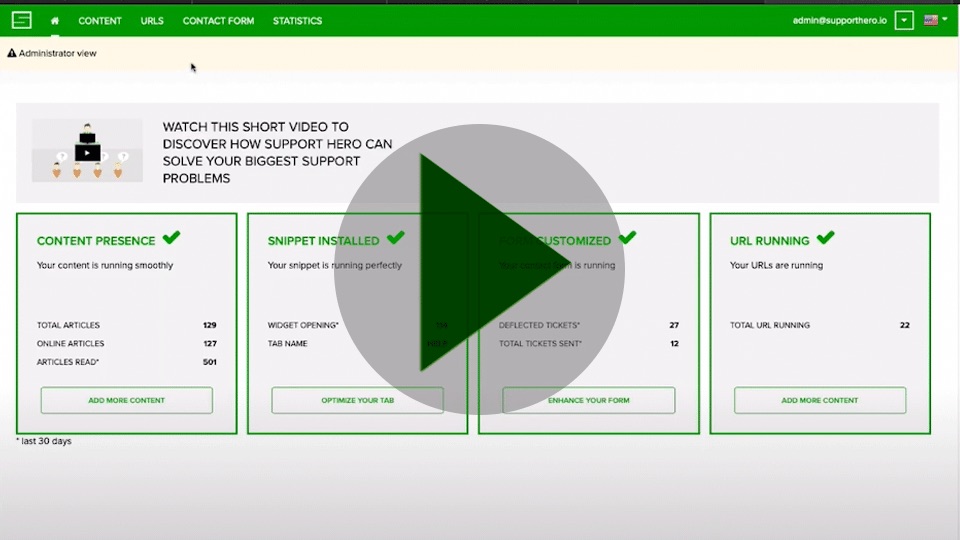
Learn what to write next
Every search in the widget tells you something. Statistics show widget openings, searches, failed searches, articles read and deflected tickets, so you can see which answers are missing.
- Failed search: the person said they didn’t find an answer, or the search returned nothing
- Deflected ticket: results were shown, an article was read and no request followed
- Analytics history: 7 days on Small, unlimited from Medium
Deflected tickets are a signal that self-service worked, not a promise of fewer tickets. Read them alongside your help desk’s own numbers.
Live in three steps
Add the snippet
Copy your account’s widget code from Support Hero and add it to your site or app.
Map pages to articles
Create a URL for each page that needs help and assign the articles that answer its questions.
Connect your own buttons
Optionally, open the widget from links in your interface, straight to the right article, category or search.
For developers
A JavaScript API opens the widget to an article, a category or a search, passes details about the signed-in user, and runs your code when the widget opens or closes. The widget also loads through AMD module loaders such as RequireJS. The widget setup guides have the code.
What customers say about in-app help
Support Hero allows you to provide in-app contextual help to customers, so they can get help with a particular feature without leaving the page. When somebody gets stuck, they just need to hit the “Need Help?” button at the bottom of the page to see relevant articles. It also provides analytics on failed help center searches, providing useful data for optimizing your knowledge base.

We’ve tried almost all support knowledge base products on the market, none came close to what Support Hero is offering. Beyond (beautifully executed) full in-app support, the insights are incredibly useful: 2 months after implementing Support Hero, we cut our volume of inbound support tickets by 50%. No other tool on the market will give you that!

Questions about the widget
How do I choose which articles appear on a page?
In Support Hero you create a URL for a page of your product, using its path (for example /user/settings), and assign articles to it. When someone opens the widget on that page, those articles are shown first.
Can I open the widget from my own button or link?
Yes. A JavaScript call opens the widget from any element in your interface, and can open it straight to a specific article, a category or a search.
Can I hide the widget or the contact form in some places?
Yes. You can hide the widget on selected pages, and show or hide the contact form inside the widget for specific cases.
How do you count a deflected ticket?
A deflected ticket is a search where results were shown, an article was read and no request was sent afterwards. It is a signal that self-service worked, not a count of tickets you would otherwise have received, so read it alongside your help desk’s own numbers.
Will it match my product’s look?
Yes. The widget and help center can be styled with CSS. The Small plan lists basic customization of the help center and widget; Medium and above list advanced customization.
Which plan do I need for the widget?
Every plan lists help center and widget customization. Plans differ in admins, languages, analytics history and integrations. If a particular widget capability matters to you, ask us which plan covers it before you choose.
Setting it up? Read the guides
See setup guidance in the Support Hero help center. Contact us if you need help matching your app’s URLs.
- Widget setup and customization
Opening the widget from a link, passing user details, callbacks and styling. - URL customization (in-context support)
Creating URLs, assigning articles and hiding the widget on chosen pages. - Contact form
Setting up the smart contact form and where requests are sent. - Statistics
What each number means, including failed searches and deflected tickets.
Explore the widget with your team’s use case
Start a 14-day free trial, no credit card required, or request a demo and we’ll walk you through the widget.